How EverSafe keeps your files safe
EverSafe is a Windows app and background service that backs up your files to an EU data centre. Everything is encrypted on your PC first, with a key only you hold. This page explains what it does and how, without the jargon where we can avoid it.
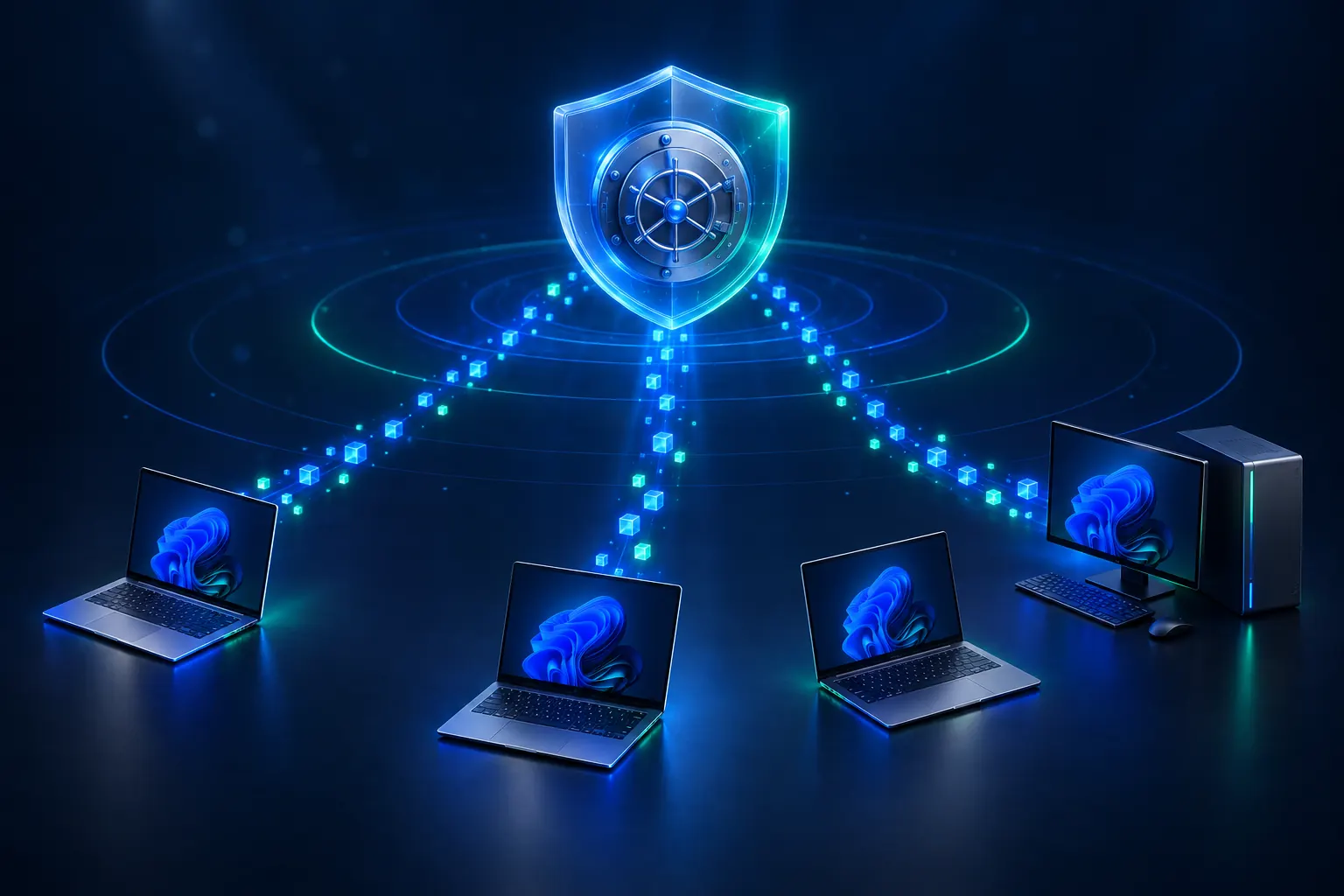
Encryption that happens on your PC
Your files are encrypted before they leave your computer. We store only data we cannot read.
AES-256-GCM
Every block of data is encrypted with AES using a 256-bit key. GCM mode also detects if stored data has been altered.
A key made from your password
Your key is created from your encryption password with Argon2id, a method designed to make guessing passwords slow and costly.
Zero knowledge
The password and the key stay on your computer. We never receive either, so we can't open your files.
File names are private too
The list of files in each backup is encrypted along with the files themselves.
Stays on your PC
- Your encryption password
- Your encryption key
- Your files as you know them
Sent to EverSafe
- Encrypted, compressed blocks
- An encrypted list of your files
- Backup times, sizes and status
Backups that run themselves
Install EverSafe, set your password, and it takes care of the rest in the background.
-
Continuous or scheduled
By default EverSafe backs up changes shortly after you save them. Prefer a routine? Switch to hourly, daily or weekly.
-
Open files included
Files that are in use, such as Outlook data files and accounts databases, are included: EverSafe copies them from a Windows Volume Shadow Copy snapshot taken at that moment.
-
Only changes are uploaded
Files are split into blocks at natural boundaries (content-defined chunking). When a file changes, only its new blocks are sent.
-
Stored once, used many times
Identical blocks are stored once, even when they appear in different files or on different computers in your account.
-
Compressed first
Blocks are compressed with Brotli before they're encrypted, so less data travels and less storage is used.
-
Sensible things left out
Temporary files, browser caches, the Windows folder and the recycle bin are skipped automatically. You choose the folders that matter.

Go back to any point in time
EverSafe keeps earlier versions of your files, so you can undo an accidental change, recover something you deleted, or put everything back as it was before a problem started.
Versions by the hour, then by the day
A version every hour for the last 24 hours, then one a day: for 10 days on Personal and 30 days on Pro. Business plans and up also keep weekly versions for a year and monthly versions for as long as your account is open.
Files, folders or everything
Pick a date and time, then restore single files, whole folders or all of it. Deleted files can be shown and brought back too.
Put it wherever you like
Restore to the original location, into this PC's matching folders, or into a folder you choose.
Moving to a new PC
Sign in on the replacement computer and tell EverSafe it's a replacement. It restores your files into the new PC's folders before it starts backing up.
Restores you can restart
If a restore is interrupted, start it again and EverSafe skips the files that are already back.
- Every hourfor the last 24 hours
- Every dayfor 10 or 30 days, by plan
- Weekly and monthlyon Business plans and up

Protection when ransomware strikes
Ransomware encrypts your files and hopes your backup copies the damage. EverSafe looks for the signs in every backup and protects the last good one.
Included on every plan.
-
It notices
A backup is treated as suspicious when a large share of your files has changed or disappeared at once, which is what ransomware does.
-
It protects the last clean backup
The newest backup from before the problem is kept for 30 days, whatever your plan's version settings, and older versions stop being cleared out.
-
You restore
The app warns you, and you can restore everything as it was before the attack.
-
Stored copies are locked
Separately, everything we store is locked for 14 days after it's written, so it can't be changed or deleted during that time.
Your account, your computers
-
Several PCs, one account
Back up 3 computers on Personal, 5 on Pro, or as many as you like on Business and above. They all share your plan's storage.
-
Online account
See your computers, change or cancel your plan and download invoices from the customer portal.
-
An email if backups stop
If one of your computers stops backing up, we email you so it doesn't go unnoticed.
-
Automatic, signed updates
Updates are digitally signed and install themselves. If a new version doesn't start properly, it rolls back.
-
Secure payments
You pay through Stripe's checkout. We never see or store your card details.
-
A UK company
EverSafe is made and supported by EverLabs Software Ltd in Kent, England.
Ready when you are
Choose a plan, install EverSafe on your PC, and your first backup begins.